
Controls
Melty Blood: Twi-Lumina controls — Act mode one-button specials versus Duel mode command inputs, button layouts, pad and stick support, and accessibility settings on every platform.
Introduction
The Controls section covers the input layer of Melty Blood: Twi-Lumina, where the game makes its most beginner-friendly decision: two official control schemes that let every player choose their own depth. Act mode triggers special moves with a direction plus a single special button, designed for intuitive, fast-paced action; Duel mode preserves traditional command inputs — quarter-circles, dragon-punch motions — with greater freedom, and official material states it has no disadvantage compared to Act. Around this choice sit the practical questions every player has: which buttons do what, how pad compares to stick, what keyboard-only play looks like on Steam, and which accessibility options exist. The Steam feature list confirms gamepad support with DualShock and DualSense compatibility, a keyboard-only option, and adjustable difficulty plus volume controls. Articles here turn all of it into setup decisions you can make in minutes.
Act vs Duel Comparison
| Aspect | Act Mode | Duel Mode |
|---|---|---|
| Special inputs | Direction + one special button | Traditional command motions |
| Learning curve | Gentle | Invested |
| Freedom | Simplified selection | Greater input freedom |
| Best for | Newcomers & casual play | Veterans & classic feel |
Setup Guides
Act Mode
One-button specials for everyone
Duel Mode
Classic inputs, full freedom
Hardware Choices
Pad, stick, hitbox, or keyboard
Comfort & Accessibility
Settings that keep you playing
Core Mechanics
Control schemes in fighting games are contracts about execution cost, and Twi-Lumina formalizes the choice instead of hiding it. Act mode's one-button specials collapse motion inputs into direction plus press, which changes what beginner matches look like: both players can access their full kits immediately, so early games become about decisions rather than dropped inputs. Duel mode keeps the motion grammar — quarter-circles, DP motions — that defines execution skill in the genre, with the freedom to select exactly which special each situation needs. Both schemes feed the same underlying systems: the Lumina gauge, Rapid Beat routes, and defense interact identically regardless of input method. The practical mechanics of setup matter too — button layout determines whether Rapid Beat mashing is comfortable, and input display settings determine whether training mode feedback is legible. This hub treats setup as the first combo you learn.
Advantages
The dual-scheme design is the most welcoming input philosophy a traditional fighter has offered, and it works because neither mode is a diluted demo: official material explicitly states Duel has no disadvantage versus Act, so newcomers on one button can share a couch — or a ranked ladder — with veterans without either side playing a handicapped game. For lapsed players, Duel mode means muscle memory from previous Melty Blood entries transfers directly. The platform support list is equally practical: DualShock and DualSense support on PC, a genuine keyboard-only option, and adjustable difficulty mean almost any setup can play the game properly. Because this wiki's guides reference both schemes everywhere, you can follow the entire Combos curriculum with either input method — the Act versus Duel table above is the only decision you must make before starting.
Challenges
The honest caveats here are mostly about unknowns in the details. The exact Act-mode special selection rules — how the game chooses between multiple specials from one button — are not public, and that granularity is precisely what veterans will evaluate when deciding which scheme suits them. Motion input veterans also give up something real in Act mode: frame-perfect option selection and the specific timing textures of manual motions have no one-button equivalent. On hardware, keyboard-only play is confirmed but its ergonomics for this genre are unproven until players spend real hours on it. And some platform-specific questions — controller support details on each console, remapping depth, and whether input display ships in training mode — remain unannounced. The section updates as official material fills these gaps.
Frequently Asked Questions
What is the difference between Act and Duel mode?+
Is keyboard play supported?+
Do I need an arcade stick to be competitive?+
Quick Tips
Decide between Act and Duel in your very first session, then give that choice a fair two-week trial before switching. Your hands learn one input grammar at a time, and constantly alternating schemes early is the single most common self-inflicted progress blocker new fighting game players face. Your hands learn one input grammar at a time, and constantly alternating between the two schemes early on quietly rebuilds the same muscle memory from zero — the single most common self-inflicted progress blocker among new fighting game players.
Turn on input display in the settings menu before practicing anything at all. Seeing your own inputs rendered live is the difference between guessing why a motion failed and knowing exactly which direction dropped — it is the cheapest, most effective training tool the game ships with. Seeing your own inputs rendered live turns every dropped motion into a specific, fixable fact instead of a vague feeling — it is the cheapest and most effective training tool the game ships with, so use it from the very first practice session.
Remap your buttons before your first real session rather than after a week of discomfort. Default layouts are statistical averages, not recommendations — placing the special button where your thumb naturally rests makes Rapid Beat mashing dramatically more comfortable and protects your hands during long practice blocks. Default layouts are statistical averages, not recommendations — placing the special button where your thumb naturally rests makes Rapid Beat mashing dramatically more comfortable, protects your hands during long practice blocks, and takes all of five minutes to set up properly.
Featured

Melty Blood: Twi-Lumina Accessibility Options Worth Using
Enable the Melty Blood: Twi-Lumina accessibility options worth using: difficulty adjustment, one-button specials, and comfort settings.
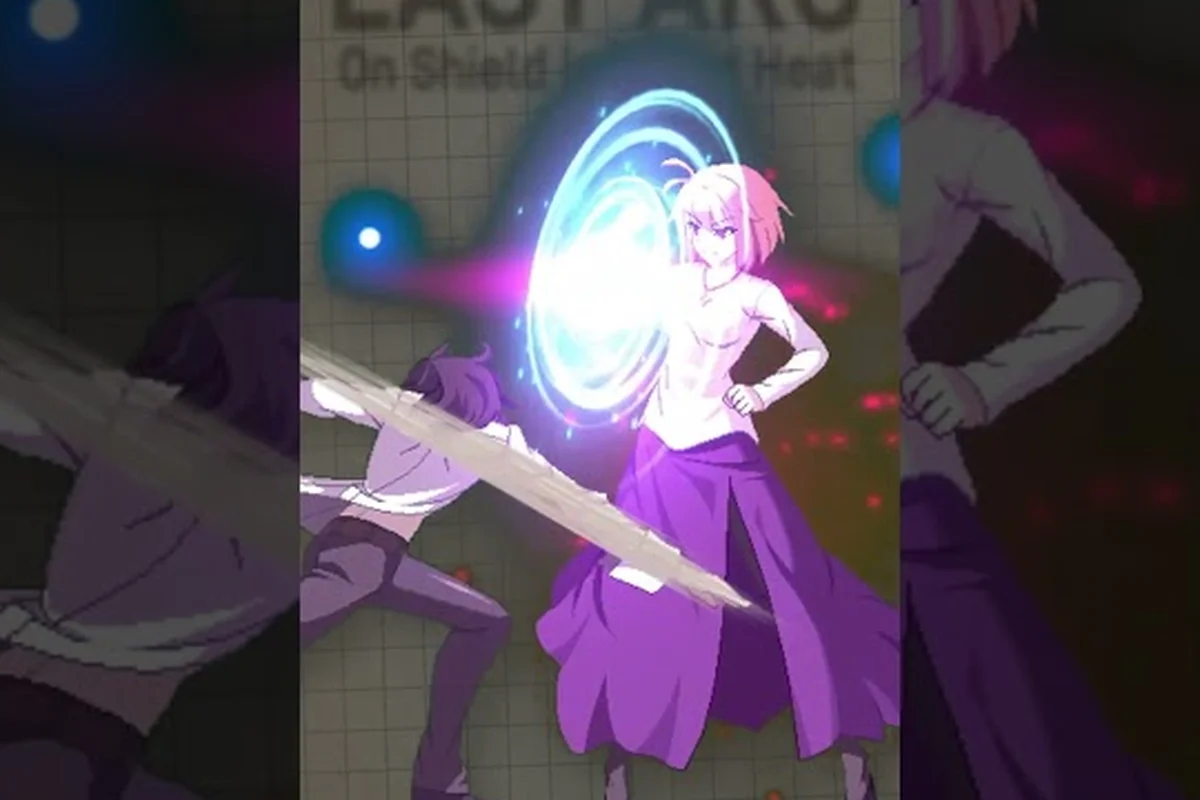
Melty Blood: Twi-Lumina Classic Controls: Motion Inputs
Set up Melty Blood: Twi-Lumina classic controls with a motion input map: quarter circles, dragon punch motions, and defaults worth keeping.
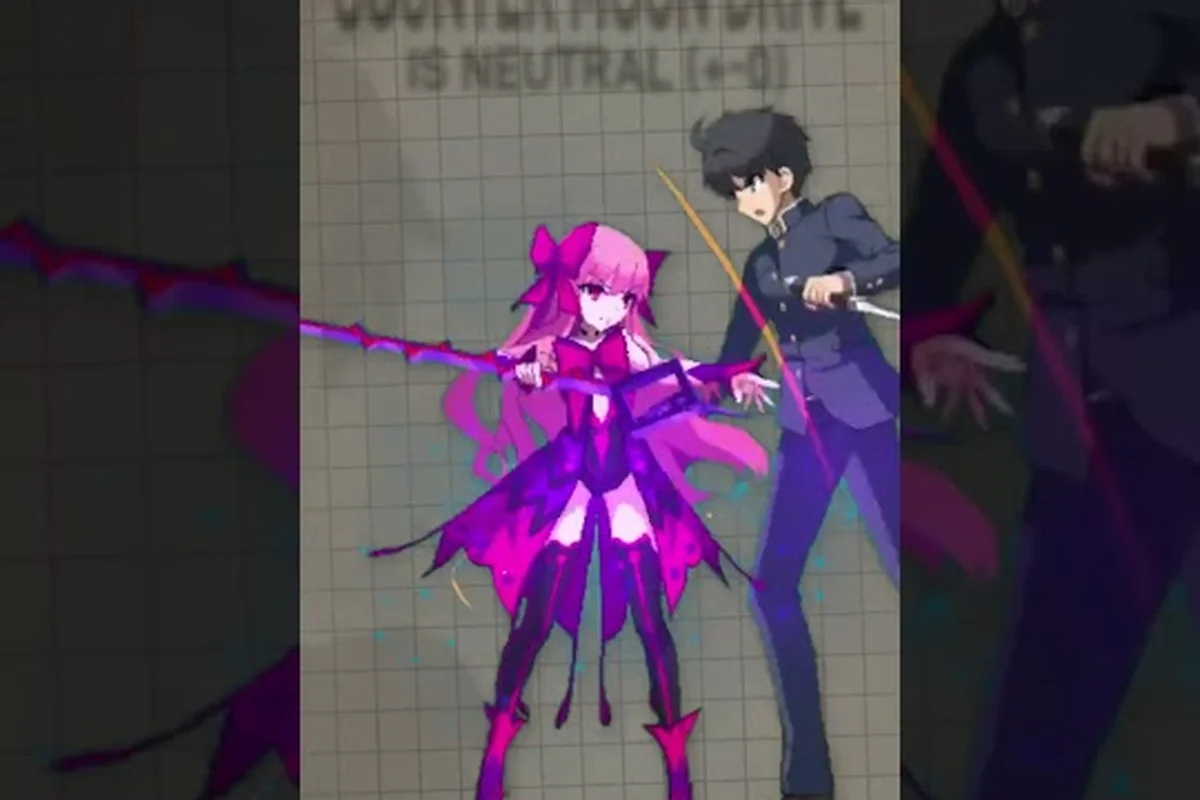
Melty Blood: Twi-Lumina Controls: Act, Duel & One-Button Specials
Master Melty Blood: Twi-Lumina controls across Act and Duel modes, including the simplified one-button special input scheme.
All Articles

Melty Blood: Twi-Lumina Gamepad Support on Every Platform
Check Melty Blood: Twi-Lumina gamepad support across platforms: DualSense, DualShock, Switch Joy-Con, and controller settings that matter.

Melty Blood: Twi-Lumina How to Parry: Timing and Prompts
Learn how to parry in Melty Blood: Twi-Lumina: timing windows, input prompts, and when a parry beats a plain block for turning matches.

Melty Blood: Twi-Lumina Remapping for Stick and Pad
Tune Melty Blood: Twi-Lumina remapping for stick, pad, and keyboard: bind profiles, button config tips, and the layouts most players trust.